PGT: GFX, Launcher & Optimizer
Trilokia Inc.Libraries & Demo
4.52.04K Reviews
- Version
- 0.21.7
- Installs
- 10.00M
- Age Rating
- Everyone
Screenshots
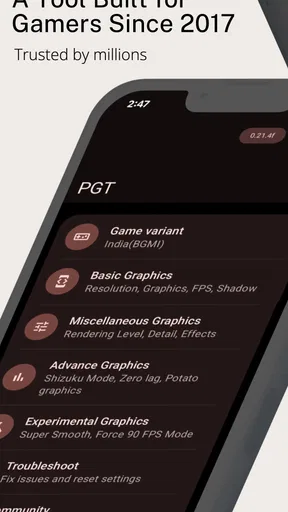
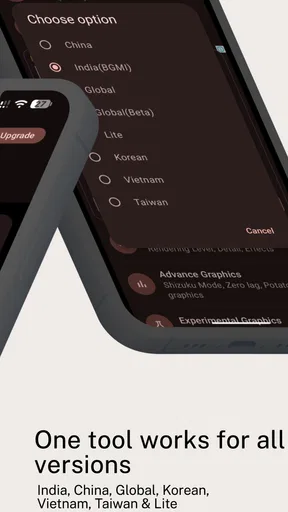
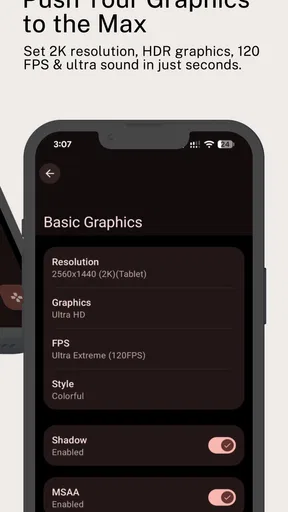
Our Review of PGT: GFX, Launcher & Optimizer
 Analysis by Appyee
I approached PGT: GFX, Launcher & Optimizer as a practical utility rather than a game in its own right. Developed by Trilokia Inc., it sits in the Libraries & Demo category and is aimed at people who want a more deliberate way to prepare specific FPS mobile games before playing. That distinction matters: this is not a general phone-cleaning app, and it is not a magic button that can turn modest hardware into a high-end gaming device.
My overall impression is that its value comes from control. Instead of leaving every visual and performance-related choice to a game’s default setup, the app gives the right kind of player a separate place to experiment. The free price makes that experiment easy to justify, while the Everyone age rating keeps the app broadly accessible. I would still approach it with realistic expectations, because graphics utilities can improve the way a game behaves only within the limits of the phone, the game, and the settings being used.
What the app is really useful for
The store summary calls it an essential GFX utility for specific FPS mobile games, and that word “specific” is the key part. I would not install it expecting a universal optimizer for every title on an Android phone. Its usefulness depends on whether the game you play is among the supported targets and whether you actually need more control than the game’s own settings provide.
That makes it a better fit for competitive players, people who regularly adjust resolution or frame-related options, and anyone who notices that a game feels inconsistent from one session to another. It can also help users who prefer to keep a separate launch routine for gaming instead of opening a title directly and changing options manually every time.
The launcher angle is more important than it may first appear. A dedicated starting point can make the process less scattered: open the utility, choose the supported game, apply the setup you want, and then begin playing. I find that workflow more useful for testing than for casual gaming. If you only play occasionally and are satisfied with the game’s built-in presets, adding another step may feel unnecessary.
PGT: GFX is currently at version 0.21.1 and supports Android 7.0 or later. That gives it a fairly broad potential audience, although operating-system compatibility alone does not guarantee the same experience on every phone. A recent device with strong cooling and a lower-end model running the same Android release can respond very differently to the same graphical choices.
Speed expectations: smoother decisions, not instant hardware upgrades
The first thing I would tell a new user is not to judge the app by how quickly its own screen opens. The meaningful question is whether the game becomes more consistent after you select a sensible configuration. A graphics utility can reduce guesswork and help you avoid settings that place unnecessary pressure on the phone, but it cannot create processing power, memory, or cooling capacity that the device does not have.
In practice, I would begin conservatively. Choose a balanced configuration, launch the game, and play long enough to reach the situations that normally cause trouble. A short test in a quiet menu is not enough. The useful comparison is a busy match, a crowded area, or a moment with repeated effects and movement. If the image remains clear enough and controls feel steady, that setup is more valuable than an aggressive profile that looks impressive for a few minutes and then becomes unstable.
One of the app’s less obvious benefits is that it encourages a repeatable process. Instead of changing several options randomly, I can alter one setting, test the result, and decide whether the trade-off is worthwhile. That is especially helpful when the game’s own menu uses broad presets. A preset may be convenient, but it does not always explain which compromise is affecting responsiveness or image quality.
The best performance gain is often consistency rather than a dramatic peak. A stable experience that stays comfortable through a full session is usually preferable to a visually ambitious setup that starts well and deteriorates under sustained use. I would measure success by fewer distracting slowdowns and a more predictable feel, not by expecting every game to run like it is on premium hardware.
Heavy-use moments reveal more than the first launch
Graphics adjustments become meaningful when the phone is under pressure. A quiet training area or a simple opening sequence may look fine with almost any reasonable setup. The real test arrives when the screen contains several moving elements, effects, and rapid camera changes at once. Those are the moments when a high-quality image setting can become expensive for the device.
My recommended workflow is to keep notes mentally, or even write down which profile was used, then compare the same type of demanding situation after each change. This avoids a common mistake: blaming the utility when the actual problem is an overly ambitious configuration. If a lower visual setting makes the game feel steadier, that is a useful result, not a failure.
There is also a battery and heat trade-off to consider, even when the immediate goal is speed. Pushing a phone harder for longer can make the device uncomfortable and may lead to reduced performance later in the session. I would therefore avoid treating the highest available option as the default. For long play periods, a moderate setup is often more sensible than chasing the sharpest possible image.
A realistic everyday scenario would be a player who has a short break after work and wants to play a few matches without spending several minutes navigating menus. Before starting, the player opens the utility, selects the supported FPS game, uses a previously tested balanced configuration, and launches the title. That routine does not guarantee a perfect session, but it removes repeated trial and error. If the phone is already warm or other demanding apps are open, I would lower expectations and close unnecessary activity before testing.
Another useful scenario is troubleshooting. Suppose a game recently feels less comfortable after the player changed visual options. Rather than immediately reinstalling the game or assuming the phone is failing, the player can return to a known configuration and compare. The app is valuable here as a controlled adjustment point, not as a repair tool.
Reliability depends on restraint and recovery
I see reliability in two parts. The first is whether the utility gives me a repeatable way to prepare a supported game. The second is how easily I can recover when a chosen configuration is not suitable. Any tool that changes the way a game starts deserves a cautious approach, because a setting that works on one phone may be uncomfortable on another.
I would always remember the last configuration that felt stable before trying a more demanding one. Change only one major variable at a time, test it properly, and return to the previous setup if the result is worse. This is a more dependable method than applying several changes together and then trying to guess which one caused the problem.
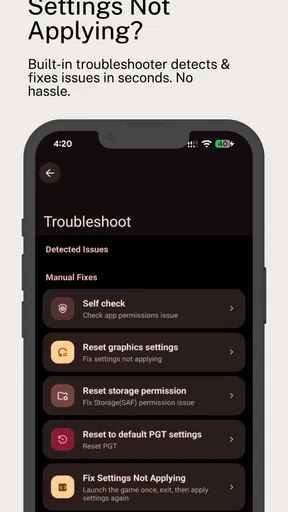
If a game behaves unexpectedly after an adjustment, my first response would be to return to a conservative profile and relaunch the game. I would not keep increasing settings in the hope that the problem disappears. A clean recovery routine is part of using any optimizer responsibly: restore the setup that worked, close the game completely if necessary, and test again under similar conditions.
That recovery mindset also helps separate app-related issues from ordinary game or device problems. If the same slowdown appears with a cautious setup, the cause may be heat, background activity, network conditions, an update, or the phone’s own limits rather than the graphics utility itself. PGT: GFX can organize configuration choices, but I would not treat it as a diagnostic authority for every problem a mobile game can have.
The app’s popularity suggests that many Android users find this type of utility worthwhile. It has an average rating of 4.5 from around 188 thousand ratings, with more than 10 million installs. Those figures make it easier for me to take the product seriously as an established option, but they do not replace personal testing. A widely used tool can still be a poor match for a particular device or playing style.
Device constraints matter more than the optimizer label
The biggest limitation is that software cannot remove physical constraints. A phone with limited graphics capability, modest memory, or weak thermal management may need lower visual demands even after using a dedicated utility. Conversely, a powerful phone may gain little from extra adjustment because the game already runs comfortably through its built-in options.
Android 7.0 compatibility is useful for people with older supported devices, but older operating systems often appear on hardware with tighter limits. I would be especially careful on such phones: start with a light configuration, watch how the device behaves during a longer session, and do not assume that compatibility means every setting is appropriate.
Storage and background load can also shape the experience, although I would not blame PGT: GFX for conditions outside its control. A phone that is nearly full, running many background processes, or already warm may feel slow regardless of the selected graphics profile. Before drawing conclusions, I would test with the phone in a normal, repeatable state.
There is a trade-off between visual clarity and sustained responsiveness. Lowering graphical demands can make distant details or textures look less attractive, while increasing them may make the game look better at the cost of heat or consistency. Competitive players may prefer the steadier response; players who value scenery and visual detail may decide that the compromise is not worthwhile.
I would also skip the app if I mainly play games outside its supported focus. Its identity is tied to specific FPS mobile games, so it is not the right recommendation for someone seeking a broad Android maintenance suite, a general battery saver, or a tool for every installed game. In those cases, the phone’s system controls or each game’s own settings may be simpler and more appropriate.
How it compares with ordinary alternatives
The usual alternative is to use the game’s built-in graphics menu. That approach is simpler, requires no separate launcher, and is perfectly adequate for players who want to choose a preset once and start playing. It also keeps all adjustments inside the game, which reduces friction and makes it easier to understand what is being changed.
PGT: GFX becomes more appealing when the built-in controls feel too limited or when the player wants a repeatable external routine for a supported title. The advantage is not that it replaces every native option; it is that it gives more intentional control around the launch process. The disadvantage is an extra layer between the player and the game, plus the need to learn which setup suits the device.
Compared with generic “booster” applications, I prefer the narrower purpose here. A broad booster may present many unrelated cleanup or acceleration claims, while a graphics utility is easier to evaluate through a direct question: did the selected setup make this supported FPS game more comfortable over a sustained session? That narrower test makes the app less appealing as an all-in-one tool, but potentially more useful for the player it targets.
I would not replace a game’s native settings permanently without testing both approaches. Sometimes the built-in balanced preset is already the best compromise. In that situation, PGT: GFX may add convenience for launching or experimenting, but it will not necessarily produce a visible improvement. The right choice depends on whether the user wants control badly enough to accept an additional step.
Who should use it, and who should leave it alone
I would recommend trying it if you play a supported FPS title frequently, notice uneven performance, and are willing to test settings methodically. It is also a reasonable option for players who enjoy tuning their setup and want a dedicated place to return to after finding a comfortable configuration.
I would be more cautious if you dislike technical adjustments, expect a single tap to solve every slowdown, or mainly care about maximum image quality. The app cannot guarantee that a demanding setup will remain stable, and an aggressive configuration may make the overall experience worse on a constrained phone.
Casual players should ask whether the extra workflow solves a real problem. If the game already feels smooth and the native menu is easy to understand, there may be no reason to add another tool. On the other hand, if repeated menu changes are irritating or the game’s presets do not fit the phone well, the utility can earn its place quickly.
The free price lowers the barrier to testing, and the Everyone rating makes it suitable for a wide range of users. Still, I would treat it as a focused configuration aid rather than an essential installation for every Android gamer. Its usefulness grows with the amount of time spent in supported FPS games and with the user’s willingness to compare settings honestly.
My performance verdict
After looking at the app through speed, sustained use, reliability, and device limits, I see PGT: GFX as a practical specialist tool with a clear ceiling. It can make performance tuning more organized and may help a player find a steadier balance between image quality and responsiveness. Its strongest contribution is giving the user a repeatable testing and launching routine.
Its weaknesses are equally clear. It is not universal, it cannot overcome weak hardware, and it adds complexity that some players will never need. Results should be judged during demanding play rather than during a quick launch, and recovery should always begin with a conservative configuration instead of increasingly aggressive changes.
For someone who plays supported FPS mobile games and wants more control than the native menus provide, I think it is worth trying. For everyone else, the ordinary in-game settings may be the cleaner solution. My recommendation is to start modestly, test through a genuinely heavy session, keep the setup that remains comfortable, and remember that stable performance is more valuable than a short-lived visual boost.
With its free access, broad Android compatibility, and established user base, PGT: GFX, Launcher & Optimizer is easy to explore without committing money. I would use it as a careful tuning companion, not as a promise of instant speed. When approached that way, it offers useful control without asking the player to confuse software adjustments with a hardware upgrade.
Privacy and Permissions
See what permissions an app requests and how it handles your data.
- Photos/Media/Files
- read the contents of your USB storage, modify or delete the contents of your USB storage
- Storage
- read the contents of your USB storage, modify or delete the contents of your USB storage
- Wi-Fi connection information
- view Wi-Fi connections
- Other
- view network connections, full network access, close other apps, control vibration, prevent device from sleeping
Verdict
Strengths of PGT: GFX, Launcher & Optimizer
- Supports custom graphics settings for smoother gameplay.
- Includes game-launching tools in one convenient interface.
- Can help reduce background activity before starting a game.
- Offers performance profiles for different device capabilities.
- Useful for testing visual quality and frame-rate compromises.
Limitations of PGT: GFX, Launcher & Optimizer
- Some features may require root access or additional permissions.
- Results vary significantly between phone models and Android versions.
- Aggressive settings can cause overheating or faster battery drain.
- Certain games may reset or ignore the applied graphics changes.
- The interface may feel confusing for users unfamiliar with GFX tools.
Other Releases by Trilokia Inc.
View All
Gamers GLTool with Game Tuner
Libraries & Demo4.5
Similar Picks in This Category
View All
AusweisApp Bund
Governikus Service GmbH3.7

Cardboard
Google LLC3.2
Gamers GLTool with Game Tuner
Trilokia Inc.4.5

Multi Web Chat - Read Secretly
World Scan & Cleaner3.8

App Cloner Premium & Add-ons
App Listo1.9

Holy Quran Offline Reading
JedyApps4.4
Frequently Asked Questions
What is PGT: GFX, Launcher & Optimizer used for?
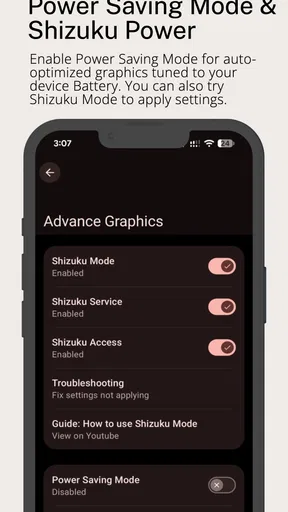
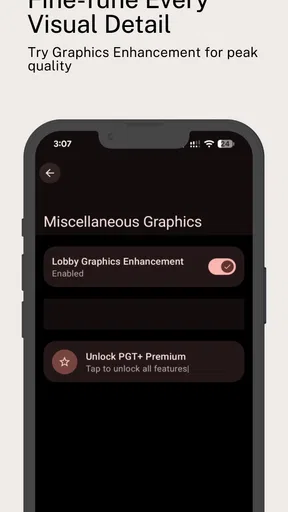
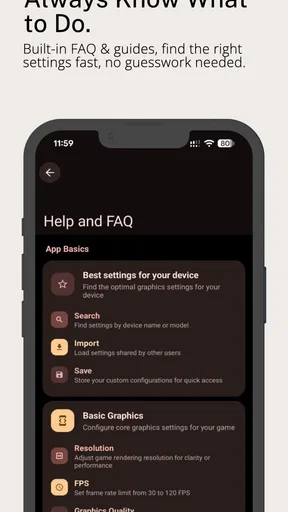
PGT: GFX, Launcher & Optimizer is designed to help Android gamers adjust graphics and performance settings for supported games. It can provide options such as resolution, frame rate, rendering quality, shadows, anti-aliasing, and other visual controls, depending on the game and device. The launcher also makes it easier to start a game with selected settings, while optimization tools may help balance image quality, temperature, battery use, and performance.
Can PGT: GFX, Launcher & Optimizer increase FPS on every Android phone?
No. The application cannot create hardware performance that your phone does not have. It may improve frame-rate stability by lowering demanding graphics options, reducing unnecessary effects, or applying settings better suited to your device. Results depend on the processor, GPU, RAM, Android version, game compatibility, and thermal condition of the phone. Some devices may see a noticeable improvement, while others may experience little or no change.
Is PGT: GFX, Launcher & Optimizer safe to use with games and my account?
The app is generally intended to modify graphics-related settings rather than provide gameplay advantages, but users should still proceed carefully. Compatibility and game policies can change, and certain games may restrict external tools or unusual configuration changes. Before applying advanced options, review the game’s terms of service, avoid suspicious features, and keep a backup of important settings. Downloading the app from a trusted store is also recommended.
Does PGT: GFX, Launcher & Optimizer require root access?
Root access is not normally required for the basic configuration features offered by PGT: GFX, Launcher & Optimizer. However, the exact level of control can vary according to the Android version, the game being configured, and the permissions available on your device. Some advanced adjustments may be limited without root or may not work on certain phones. If a feature requests unusual permissions, check why they are needed before accepting.
Will using PGT: GFX, Launcher & Optimizer improve graphics quality or battery life?
It can help you choose a more suitable balance, but it cannot guarantee both maximum graphics quality and longer battery life at the same time. Higher resolution, frame rates, shadows, and effects usually increase power consumption and heat. Lowering demanding settings may improve stability and extend play time, while stronger devices can often use higher-quality presets. Test changes gradually and monitor temperature, battery drain, and gameplay smoothness after each adjustment.
